Joe's Filters: Joe's Flexi-Smear
An irregular distortion plugin for Final Cut Pro can simulate stretched and mylar-like distortions.Visit the New FXScript Reference and Joe's Filters sites. These pages will be phased out soon and may already be out of date.
Joe's Flexi-Smear is a part of Joe's Filters, a shareware package of utility and image processing tools for Final Cut Pro.
What it does
Joe's Flexi-Smear pushes and pulls at the corners of the clip, bending and stretching the image. Though essentially a corner-pin distortion, Joe's Flexi-Smear can also take advantage of a potential visual feedback loop resulting in an unpredictable tearing of the image. When tearing is enabled, the effect can produce distortions similar to mylar or Each corner is adjusted with a direction and intensity. Each corner's direction and offset intensity can be randomized over time.
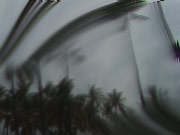
Example Images
This effect is best understood through experimentation. The most dramatic tearing effects come from stretching opposite corners. To "turn off" a corner, set it's intensity to zero. Tearing effects are most noticeable when directed towards the bottom of the image.|
Joe's Flexi-Smear Intensity: 0 - 10 |
Joe's Flexi-Smear Intensity:5 |
 original image |
|
 |
 |
 |
 |
| examples of tearing distortions | |
Unfortunately previewing tearing on the desktop will not always match the output on the video monitor prior to rendering. Double check any torn distortions on your video source to be sure of what you're getting.
The Controls
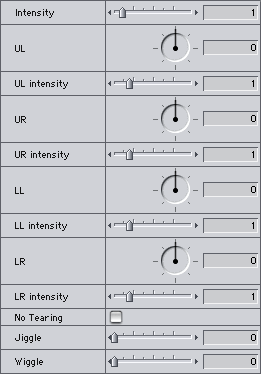
- Intensity (0 - 10)
Slider to globally adjust the intensity of the effect. This value is multiplied by each individual corner offset and can be used to turn off all the corners at the same time.
- UL, UR, LL, LR (-360 - 360)
Sets each corner's offset direction. The letters stand for Upper Left, Upper Right, Lower Left and Lower Right.
- UL, UR, LL, LR Intensity (0 - 10)
Sets how far to offset each corner. This value is multiplied by the overall intensity value.
- Wiggle (0 - 10)
Randomizes the intensity of each corner's offset.
- Jiggle (0 - 10)
Randomizes the direction of each corner's offset.
Why Wiggle and Jiggle?
According to Dictionary.com, jiggle generally means moving up and down, while wiggle means moving back and forth. Even though it's still somewhat arbitrary, I decided that adjusting the angle was back and forth, therefore jiggling. Adjusting the intensity moves the point back and forth from the center, so it's called wiggling. Jiggle comes before wiggle because this mirrors the angle and intensity controls from the rest of the filter. This also helps for remembering which is which.
Joe's Filters for Final Cut Pro
Joe's Filters
Joe's Filters Related
FXScript for Final Cut Pro
Joe's Debug and Explore Filters
Final Cut Pro tips
Film & Video
Recording the sound of
one eye blinking
Photography
Projects
Final Cut Pro
Design
WRITING
Site Notes Archive (weblog)
Web Resources
About Joe Maller
Past Home Pages Etc.
Search joemaller.com
Contact Me