Joe's Filters: Joe's Maximizer
A plugin for Final Cut Pro which expands pixels into user defined shapes, similar to Circles of Confusion.The Joe's Maximizer plugin is a part of Joe's Filters, shareware utility and image processing effects for Final Cut Pro.
What it does
Joe's Maximizer expands image pixels to create anything from a irregular mosaic to a kaleidoscope of geometric shapes. The shape-expansion can be set to lighten or darken and grows to cover the opposite pixels. Iterations can be spaced out to create kaleidoscopic and prismatic effects.
Rendering speed is directly proportional to the complexity of the resulting effect. Increasing the amount and number of sides requires more calculations and longer render times.
This effect started out as a clone of to Photoshop's Minimum and Maximum filters, which are Adobe's names for the fundamental digital processes Erode and Dissolve. Working around FXScript's inability to duplicate this process ironically lead me to discovering that multiple-sided shape-expansion was possible.
Joe's Maximizer grew from and replaces Joe's Minimum Maximum. It can be used to create the same square effect, but is now faster and can create shapes with more or less than four sides.
Example Images
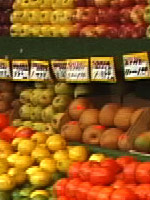 Original Image |
Sides: 3 |
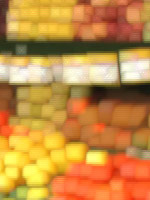 Joe's Maximizer Sides: 4 |
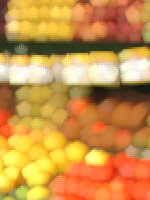 Joe's Maximizer Sides: 5 |
Sides: 6 |
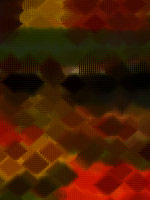 Joe's Maximizer Amount: 5 |
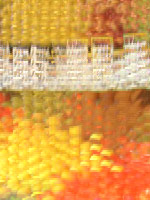 Joe's Maximizer Amount: 2 |
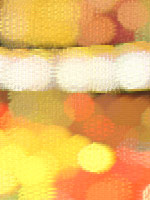 Joe's Maximizer Amount: 2 |
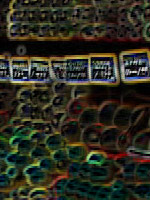 Joe's Maximizer Amount: 8 |
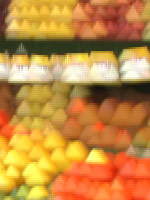

The Controls
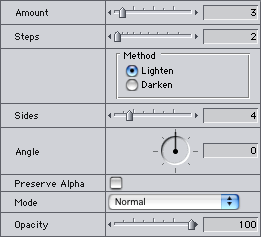
- Amount (1 - 20)
The radius of the effect, this is defined the number of iterations out from the source pixel. Negative values darken, positive values lighten. The larger the absolute value entered, the larger the resulting squares. Larger values can significantly increase rendering times.
- Steps (1 - 50)
This increases the spacing between Amount iterations while at the same time increasing the total radius of the effect. Most of the time, values of 2 or 3 do not produce visible gaps and can be used to speed up the effect by reducing the amount. The setting (Amount:5, Steps:2) is nearly identical to {Amount:10, Steps: 1}. Larger step values produce a kaleidoscopic blocking effect.
- Method
Defines the compositing mode for mixing the shapes back onto the image.
- Sides
Sets the number of sides for the shape the pixels will expand into. Values between whole numbers can be used to produce irregular shapes.
- Angle
Sets the baseline angle of the expanded shape.
- Preserve Alpha
Tells Final Cut Pro to maintain the clip's original alpha channel information.
- Mode, Opacity
Composite controls to specify how to blend the shape-expanded image back onto the original clip.
Joe's Filters for Final Cut Pro
Joe's Filters
Joe's Filters Related
FXScript for Final Cut Pro
Joe's Debug and Explore Filters
Final Cut Pro tips
Film & Video
Recording the sound of
one eye blinking
Photography
Projects
Final Cut Pro
Design
WRITING
Site Notes Archive (weblog)
Web Resources
About Joe Maller
Past Home Pages Etc.
Search joemaller.com
Contact Me